How to Cut a YouTube Video on Your Phone (No App Needed)
26 October 2026
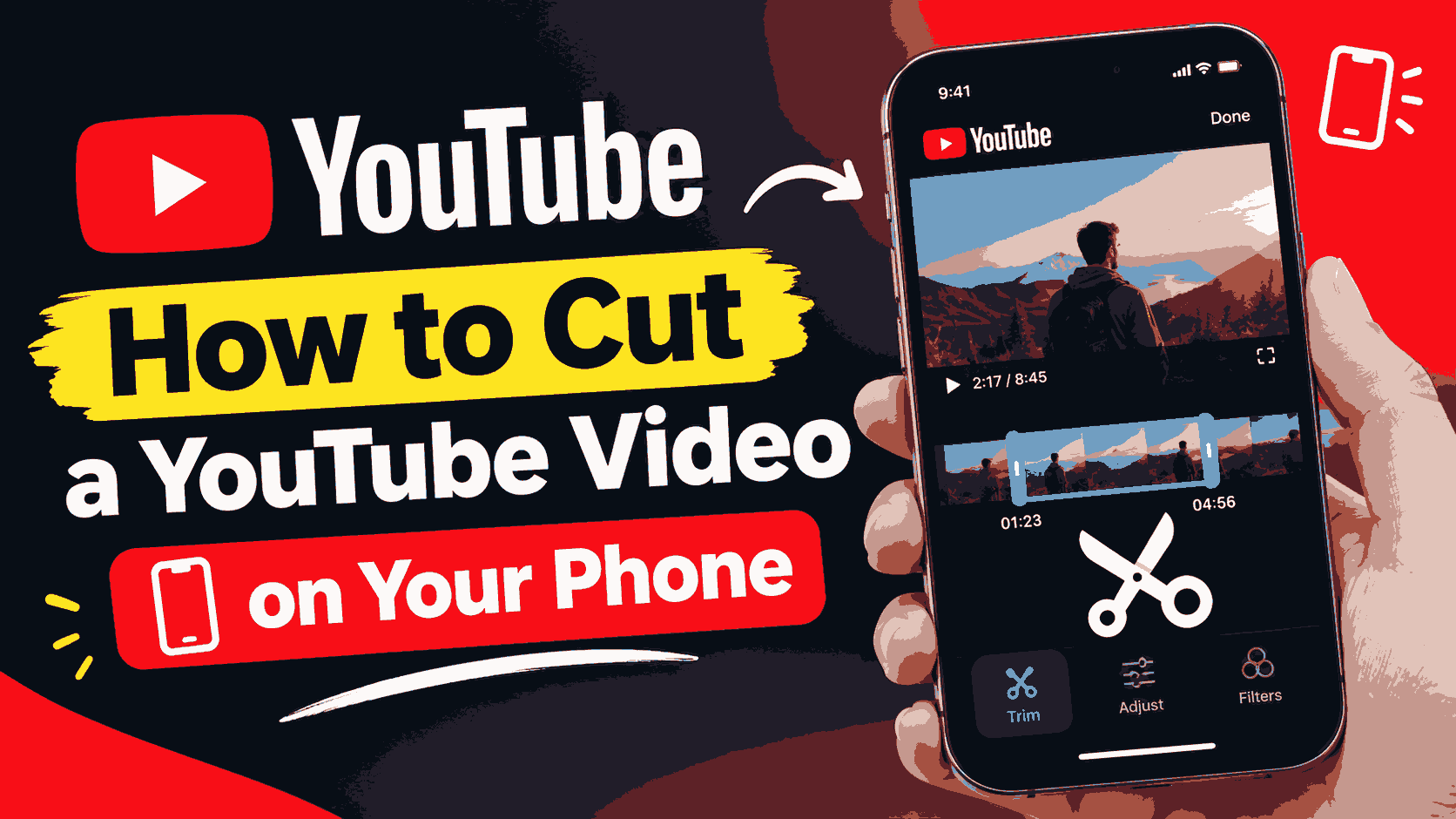
Most "YouTube cutter" apps ask you to install something, sign up and sit through ads before you can trim anything. If you only want one short part of a video — a recipe step, a goal, a funny line from a podcast — your phone's browser is enough. No app, no editing skills.
This guide covers the full process on Android and iPhone: copying the link, setting the cut precisely on a small screen, and saving the clip where you can actually find it afterwards.
Why cut in the browser instead of an app?
- Nothing to install. No storage used by another app, no extra permissions.
- Less data used. You download only the part you want. A one-minute clip is a small fraction of a full 20-minute video, which matters on mobile data.
- Works on any phone. Chrome, Safari, Samsung Internet, Firefox — if it opens websites, it works.
- Better quality than screen recording. You get the video itself, without the play button, notifications or status bar burned into the picture.
What you need
- The YouTube app, or YouTube open in your browser
- Any mobile browser
- About a minute
Step 1: Copy the video link
In the YouTube app: open the video, tap Share, then Copy link. Shorts have the same Share button on the right side.
In a browser: tap the address bar and copy the link.
Both normal links (youtube.com/watch?v=…) and short links (youtu.be/…) work, as do Shorts links.
Step 2: Open VidKart and paste the link
- Open vidkart.online in your browser.
- Tap the box at the top, paste the link and tap Clip it.
- The video opens in the editor with a timeline under it.
Tip: on a narrow screen, turning your phone sideways while previewing gives a bigger picture. Turn it back upright for setting times, since the controls fit better that way.
Step 3: Set the start and end on a small screen
Dragging a thin timeline with your finger is fiddly, so the editor gives you more precise options:
- Type the times. Tap the start or end box and type a time like
1:05or12:30. - Nudge with buttons. Use the ± buttons under each time to move it a second at a time.
- Use the video. Play to the moment you want and set it as your start or end.
Then play the clip to check it. If the first word is cut off, move the start back one second. If it ends abruptly, move the end forward.
Step 4: Download or share
Tap the Download bar at the bottom of the screen to save the section as an MP4. You can also copy a share link to send on WhatsApp, Telegram or Instagram messages.
The highest quality depends on your plan: free accounts download up to 720p, and paid plans unlock 1080p and higher. See the trim and download quality options.
Where does the clip go? (iPhone)
On iPhone, Safari saves downloads to the Files app, not to Photos. To move it to your camera roll:
- When the download finishes, tap the download arrow in Safari's address bar, then tap the file.
- Or open the Files app → Browse → Downloads.
- Open the video, tap the Share button and choose Save Video.
It now appears in Photos, ready to post to Instagram, WhatsApp status or anywhere else.
If you use Chrome on iPhone, the file may open in Chrome's own download list first. Tap Open in… and then Save Video.
Where does the clip go? (Android)
On Android the file usually goes to the Downloads folder:
- Pull down the notification shade and tap the finished download, or
- Open your Files / My Files app → Downloads.
Most gallery apps, including Google Photos, show videos from the Downloads folder automatically. If yours doesn't, open the file and share it to the gallery, or move it to the DCIM or Movies folder.
Browser vs. apps vs. screen recording
| Method | Quality | Install needed | Data used | Extra steps | |---|---|---|---|---| | VidKart in your browser | The video's own quality (up to your plan's limit) | No | Only the clip | None | | Editing apps (CapCut, InShot, etc.) | Good, after you get the file | Yes | Usually the full video first | You still need the video file to edit | | Screen recording | Lower; includes on-screen clutter | No | Full playback streamed | Trimming and cropping afterwards |
If you plan to add text, music or effects, cut the clip in VidKart first and then open the small file in your editing app — it's much faster than importing a full video.
Saving mobile data
On mobile data, a long video can eat a lot of your plan. Cutting only the part you need helps, and so do these habits:
- Choose a lower quality like 480p if the clip is just for a chat message.
- Wait for Wi-Fi for long clips or higher qualities.
- Delete clips you no longer need from Downloads — they don't disappear on their own from your phone.
Common phone problems and fixes
- The download doesn't appear. Check Files → Downloads (iPhone) or the Downloads folder (Android). Some browsers ask before downloading — look for a small prompt at the bottom of the screen.
- The page zooms in when I type. Pinch to zoom back out. The editor is built to fit phone screens.
- The video won't load. Private, members-only and some age-restricted videos can't be loaded. Check that the video plays when you're signed out of YouTube.
- My phone says storage is full. Free up some space or choose a lower quality.
- The clip has no sound in places. Some YouTube videos have muted sections because of music rights. The clip keeps those sections muted.
Use clips fairly
Only download videos you own or have permission to use. Sharing a short clip with credit to the creator is common, but reposting other people's videos as your own can break YouTube's rules and copyright law.
Frequently asked questions
Can I cut a YouTube video on my phone without an app? Yes. Paste the link into VidKart in your phone browser, set the start and end, and download just that part.
Does it work on iPhone and Android? Yes, in any modern mobile browser, including Safari and Chrome.
How do I save the clip to my iPhone's Photos? Open it in the Files app, tap Share, then Save Video.
Can I cut a YouTube Short on my phone? Yes. Copy the Short's link from its Share button and paste it in the same way.
What quality will my clip be? Free accounts download up to 720p. Paid plans unlock 1080p and higher.
Do I need a computer at any point? No. Every step works on the phone.
Want more detail on formats and quality? Read the YT video download trim guide, or just open vidkart.online and paste your link.